


Integration
Inhalte
Calling the services / integration of the iFrame with the service
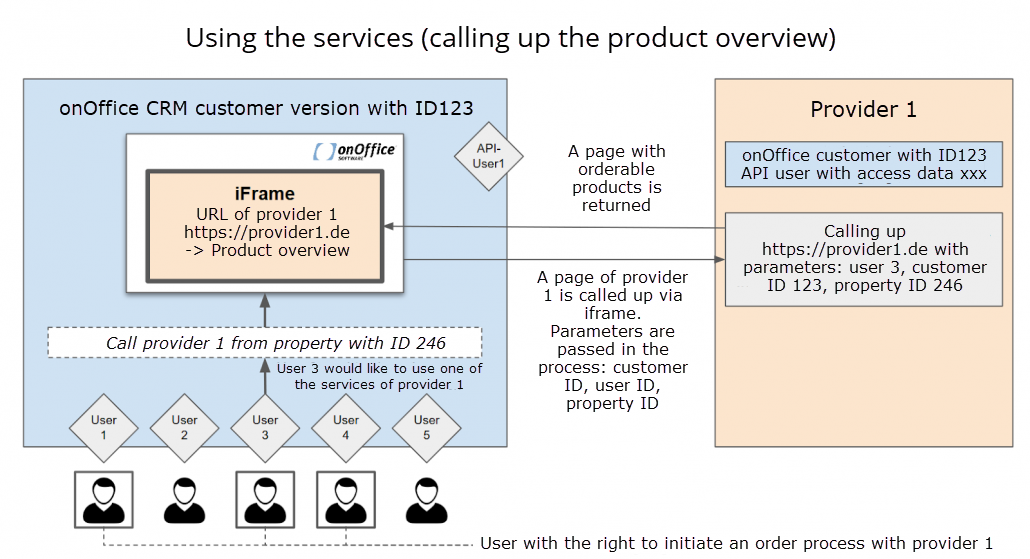
After activation, your service will be integrated into enterprise via iframe .
For the integration, the iframe URL must be publicly accessible for the service. You share this URL for your service with us once when we add you as a provider for the Marketplace.
The URL that can be used for the iframe of the service is also signed. We use the same procedure for this as for the signature when activating a provider.
Your task as a provider is to independently check the URL against the signature.
The following information is transferred signed when it is called up via the URL:
- Client name: customerName
- User Web ID: customerWebId
- User ID: userId
- API claim: apiClaim. Serves for user verification, see Consider user rights when reading via API. Must be returned as extendedclaim for read calls, see API documentation >> Marketplace. You can find a sample API call with extendedclaim there.
- If the user is in a group, group ID: groupId
- Timestamp: timestamp (format: Unix timestamp in seconds, the elapsed seconds since 00:00 UTC Thursday, January 1, 1970)
- Parameters defined by macros (e.g. ID of a property or address; language parameter language for multilingual properties; language parameter UserLanguage for the customer’s language)
- Image ID: If images are selected on the Files tab at Properties, the image IDs are passed as the imageIds parameter.
Update parent window and close shop-iframe:
There is the possibility to give a type via the Javascript function processTypeToonOffice(type) to close the service-iframe or to trigger the update of the parent window in onOffice enterprise. For example, you could use it to update the parent window after submitting an image or data to enterprise so that the user sees the changes directly.
The message.type is used for this purpose, which can contain the following types:
- onOffice.service.refreshParent (parent window in enterprise is refreshed)
- onOffice.service.refreshParentAndClose (parent window in enterprise is refreshed and the service popup is closed)
- onOffice.service.closeProviderWindow (The service popup is closed)
This method is to be implemented by you. In addition to the “onOfficeType” parameter, a timestamp and the signature over all values should be sent along. As with the payment popup.
The Javascript function can be seen in the demo store here and 3 buttons in the demo store trigger the actions here .
Note Safari:
Since Apple’s Safari browser blocks third party cookies and deletes first party cookies relatively quickly, we recommend enabling them and setting up your service to work without cookies.
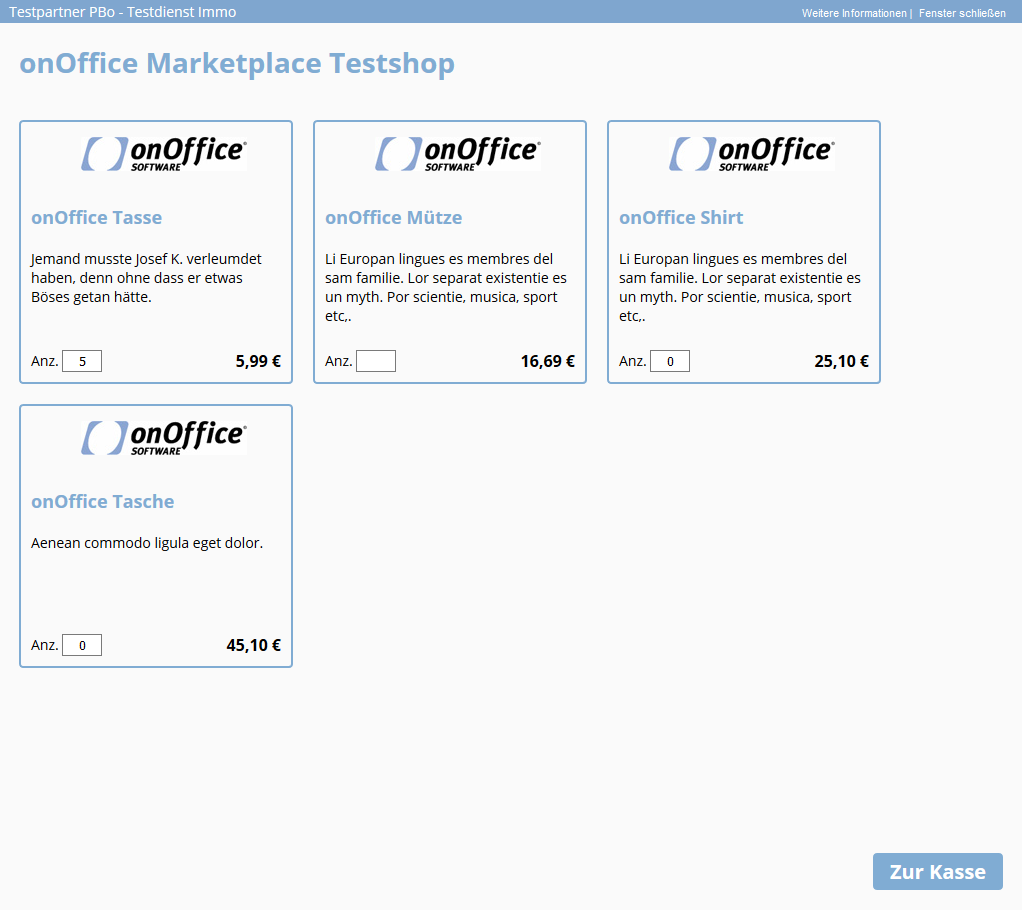
Example view of an unlocked service:
Your service is called up via the menu item “Marketplace” in onOffice enterprise or via the action bar in the individual modules such as property and addresses.
In this popup you present your products including prices via iframe. The user can order your products directly. The next step opens the popup for payment confirmation and processing. Optionally, your service can also run in a new browser tab.
Lack of context
Some services, such as floor plan optimization, require a property or address reference. The user must be in the record of a property or an address at the time of calling this service. The required information about the context, such as the property ID (estateid) or the address ID, is transferred to you.
For multilingual properties, in addition to the estateid parameter, the language language parameter is also transferred, which you must specify as estatelanguage when reading and writing properties via the API.
If the user is in a place in the software where this reference cannot be made, a message will appear:
“This service can only be called from a property / address.”
Live and beta clients
onOffice enterprise users can be either live or beta customers, in which case the URLs are “https://smart.onoffice.de” and “https://crm-beta.onoffice.de” respectively. In the live system, the source code is updated monthly on the first Tuesday of every month. In the beta system there is an update of the source code 2x a week, on Tuesday as well as Thursday.
Your provider client is a beta client. The vast majority of clients use live clients. I.e. requests can come from the two URLs “https://smart.onoffice.de” or “https://crm-beta.onoffice.de/”.
Important note: The URL ‘https://crm.onoffice.de’ must be used in the live system from November 2025 onwards. The previous domain ‘https://smart.onoffice.de’ will then no longer be valid.
If you have used the source code of our demo stores as a template, however, you do not need to set anything on your page.
However, if you need the information whether a client is a live or a beta client, this can be read out via macro. If you want to have the macro included in your service URL or activation URL, please let us know at marketplace-dev@onoffice.de.
Webhooks / failed webhooks
Introduction
Besides the presentation of your store embedded in an iFrame within onOffice enterprise, there is also the possibility to run your services as webhooks. Webhooks are generally understood to be the calling of specially prepared websites in order to pass on targeted information so that no regular polling has to be carried out for this purpose.
In the Marketplace, webhooks are used to access certain services automatically.
These services have no visible GUI for the user, but run in the background. The webhooks are triggered by certain actions, e.g. when saving a property if certain fields have changed. For example, the Sprengnetter property valuation or the Newsletter Connector are executed as webhooks. If, for example, price or area fields of a property change, the Sprengnetter webhook is triggered, which triggers a new property valuation.
If you would like to have your service executed as a webhook, please get in touch with your contact person at our company during the connection phase. We will then discuss the required parameters (URL to be called, required reference (property or address), filters, which fields trigger the webhook, etc.)
If a service that is executed as a webhook fails, then the user will be informed about it and about the possible cause via email.
Webhook signature
The signature for a webhook is calculated in the same way as for activation.
Webhook specification
If you would like to run your service as a webhook, please contact your onOffice representative. The following information is required for webhook configuration.
Basic information
– Display name: What should the service be called for users?
– Target URL: To which URL should the data be sent?
– Module reference: Which module does the webhook refer to (e.g. ‘Addresses’ or ‘Properties’)?
Triggering action
Which action should trigger your webhook? The following are possible:
– Save: The webhook is triggered when a new or existing data record is saved.
– Delete: The service is notified when a data record is removed.
– Process manager: The webhook is triggered specifically by an action in the onOffice process manager.
– Click on service menu item: The call is made manually by the user via a menu item in onOffice enterprise.
Desired mode
This mode serves as an additional condition check for the selected action.
– Filter: The webhook is only triggered if the data record matches a previously defined onOffice filter. (e.g. property with purchase price > £300,000). Please let us know the filter conditions so that we can set up the filter for you.
– Changed values: The transfer only takes place if changes have been made to the data.
– Filter and changed values: A combined condition, i.e. the record must meet the filter and there must be changes.
– Filter or changed values: The webhook is triggered when the record meets the filter or there are changes.
Field specifications
– You can define specific fields (e.g. ‘First name’) and check the values in these fields for changes. The webhook is then only triggered if exactly these values change.
– Fields to be emptied on call: These are fields that should be emptied in onOffice after a successful webhook call.
– Permitted process manager URL parameters: Define variables that the process manager is allowed to append to your URL when calling.
User experience
– Start note: What information text should be displayed to the user as a push notification in onOffice enterprise when the webhook is triggered? Let us know if you would like to have your own text.
– Icon: Should an icon/image be displayed in addition to the info text? In this case, please provide us with the image (256×256 Pixel).
– Timeout: Time span in seconds that onOffice should wait for a response from your server (1 to 999 seconds).
URL design with onOffice macros
onOffice macros can be used directly in the webhook URL to transfer dynamic data from the respective data record.
Example: https://your-service.com/api?email=_Email&price=_kaufpreis.
Complete list: An overview of all available macros can be found in the onOffice macro list.
If your service is to transfer data via URL, please let us know the relevant macros.
This post is also available in: German